微信小程序文件上传

HBuilder版本:3.8.12.20230817

uni-Cloud

  1. 新建uni-app项目

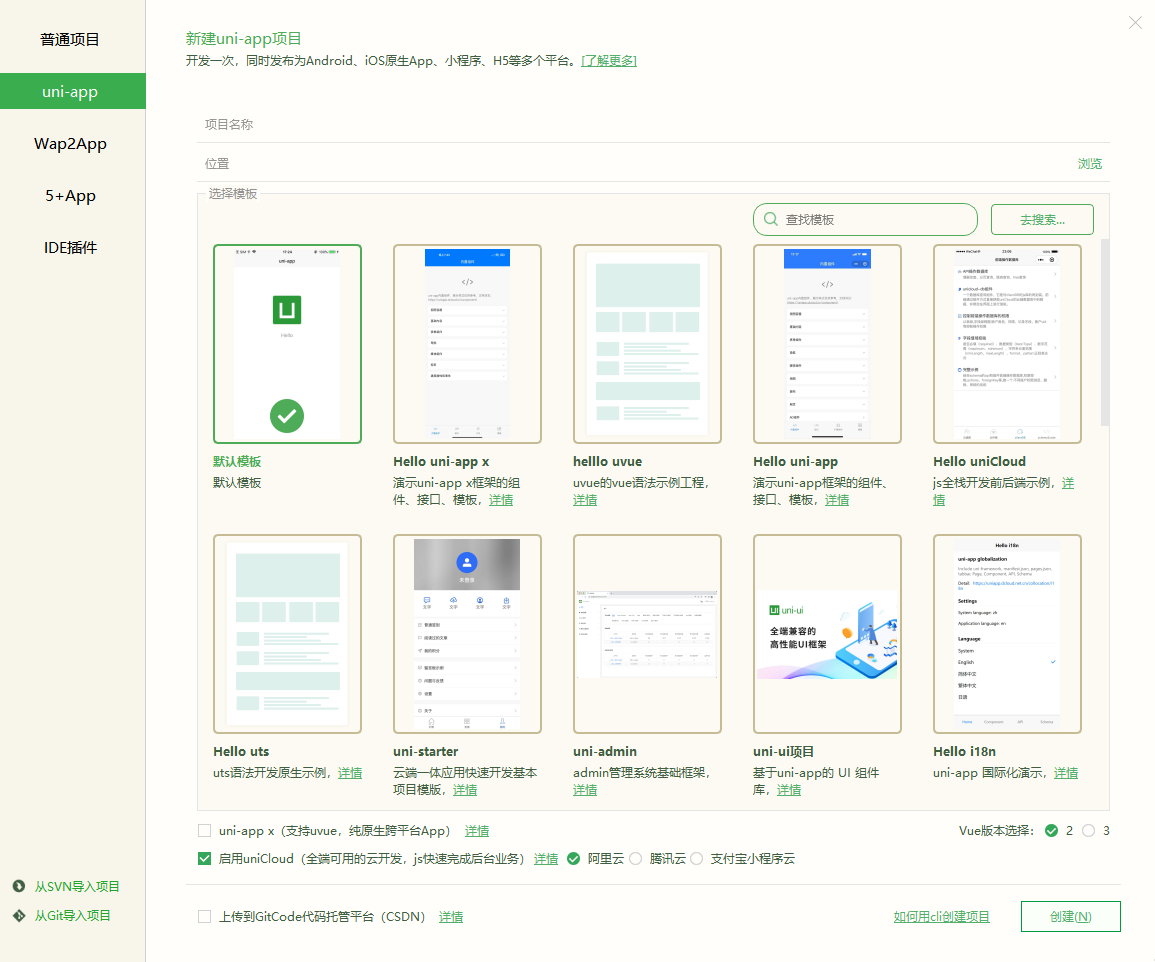
    选择启用uniCloud,使用阿里云 , Vue2,默认模版
  2. 初始化uniCLoud

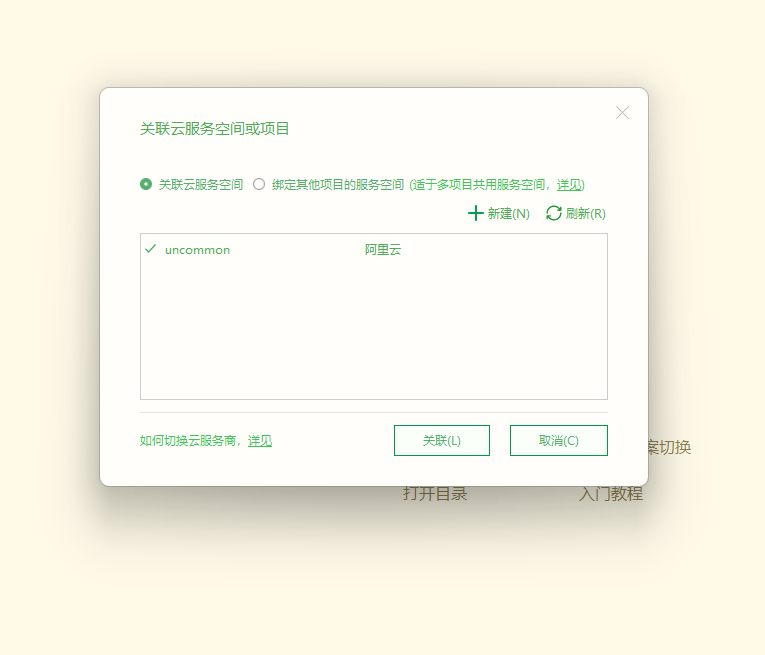
    HBuilderX 会在项目创建后弹出 uniCloud初始化向导,根据向导部署阿里云服务空间

    • 按照法律要求,开通云服务器需实名认证,如未认证请根据提示完成

    • 创建一个服务空间,创建完成后回到向导刷新列表,选择这个服务空间(创建服务空间可能需要几十秒的时间,可以在web控制台查看是否创建完成。)
云函数

可以参考这篇博客 https://blog.csdn.net/weixin_38946164/article/details/110639049

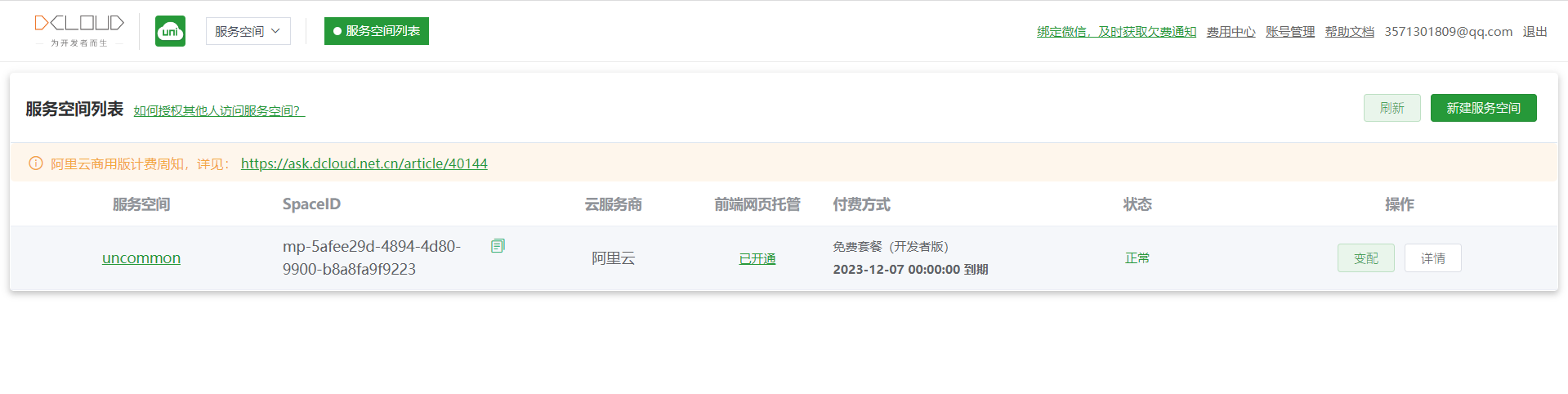
  1. 在uniCloud 的 web 控制台选择你创建好的服务空间

  2. 点击名称(如图为 uncommon)进入

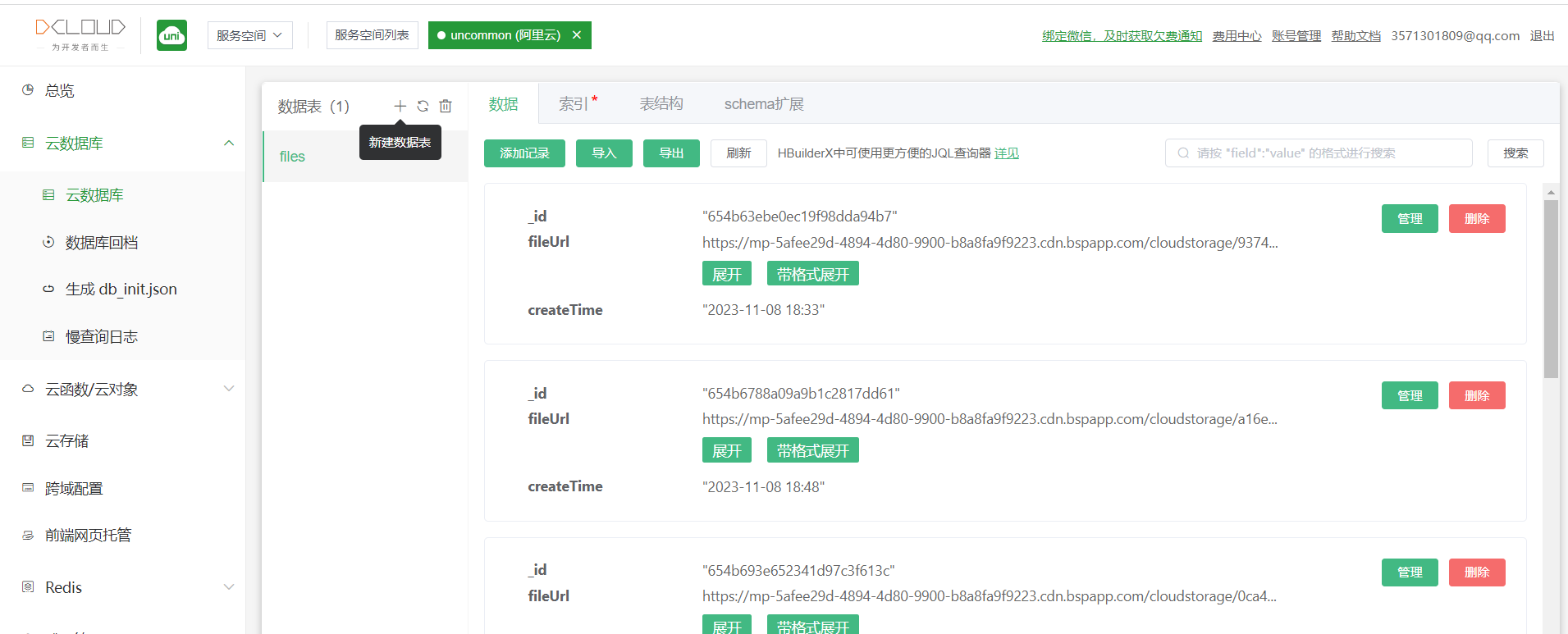
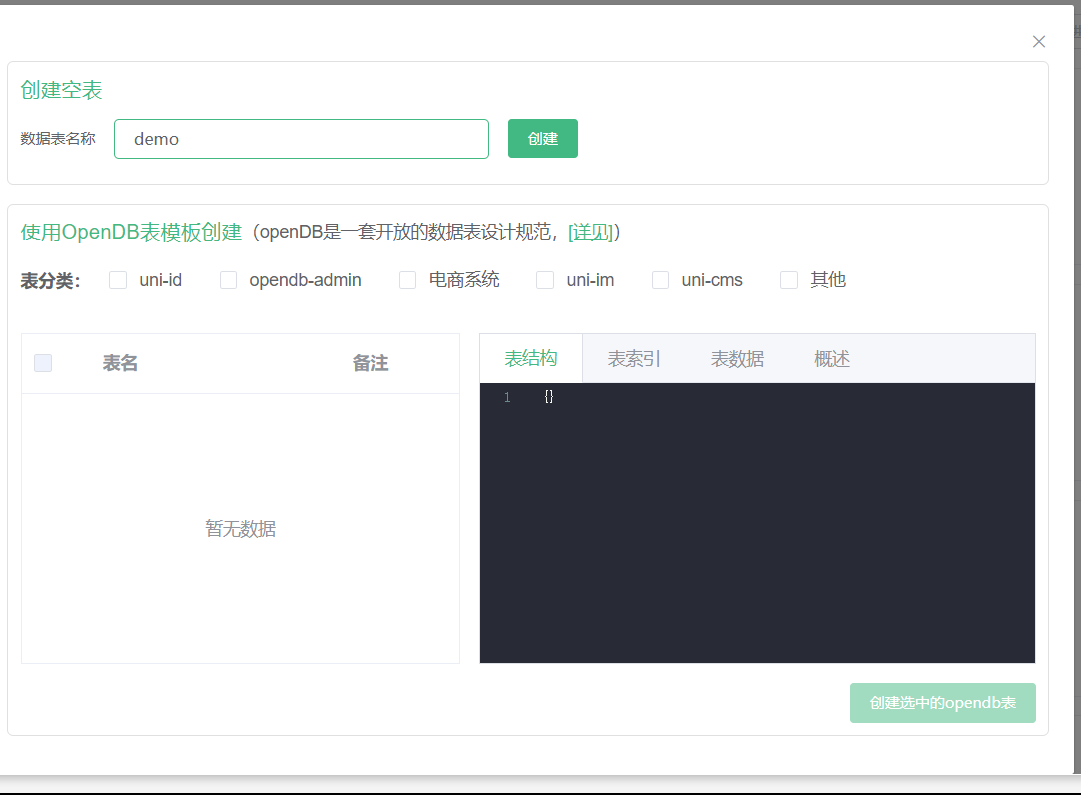
  3. 在云数据库中新建数据表

    直接创建空表

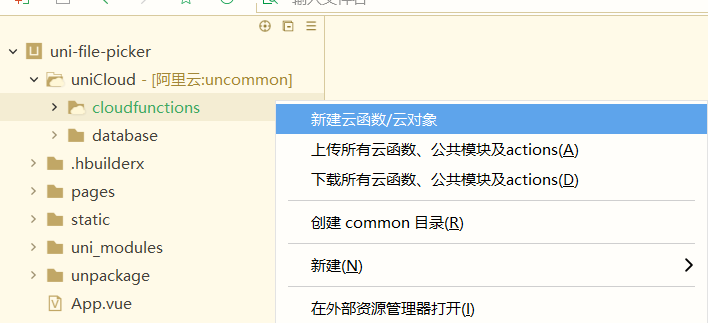
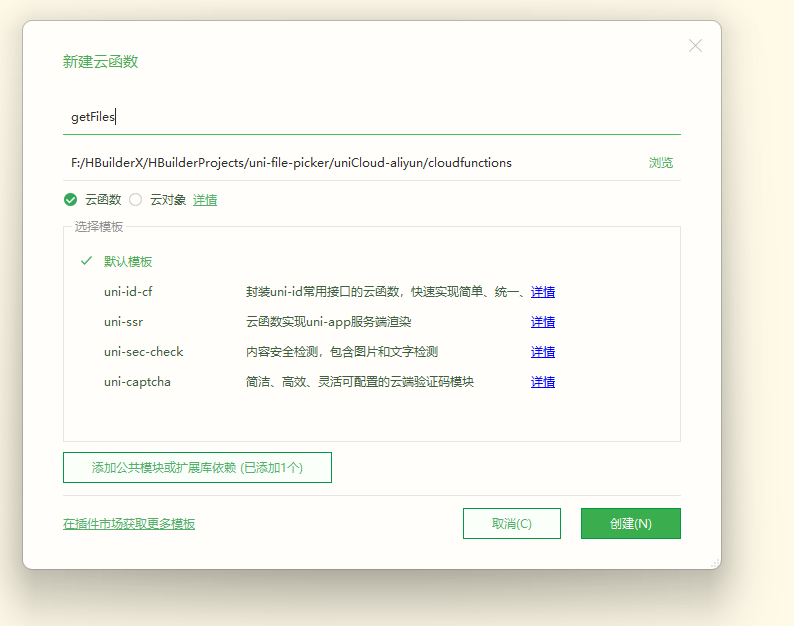
  4. 在项目的uniCloud.cloudfunction目录下右键新建云函数

  5. 起个名字后点击创建

    要分别创建addFilesgetFiles两个云函数

  6. addFiles.index.js里写函数:

    注意将 files 改为自己的云数据库里的表名

    1
    2
    3
    4
    5
    6
    7
    8
    'use strict';
    const db = uniCloud.database()
    exports.main = async (event, context) => {
    const collection = db.collection('files') //云数据库里的表名 ,记录上传图片到云存储后返回的fileID
    const res = await collection.add(event) //event为客户端上传的参数
    return res
    };

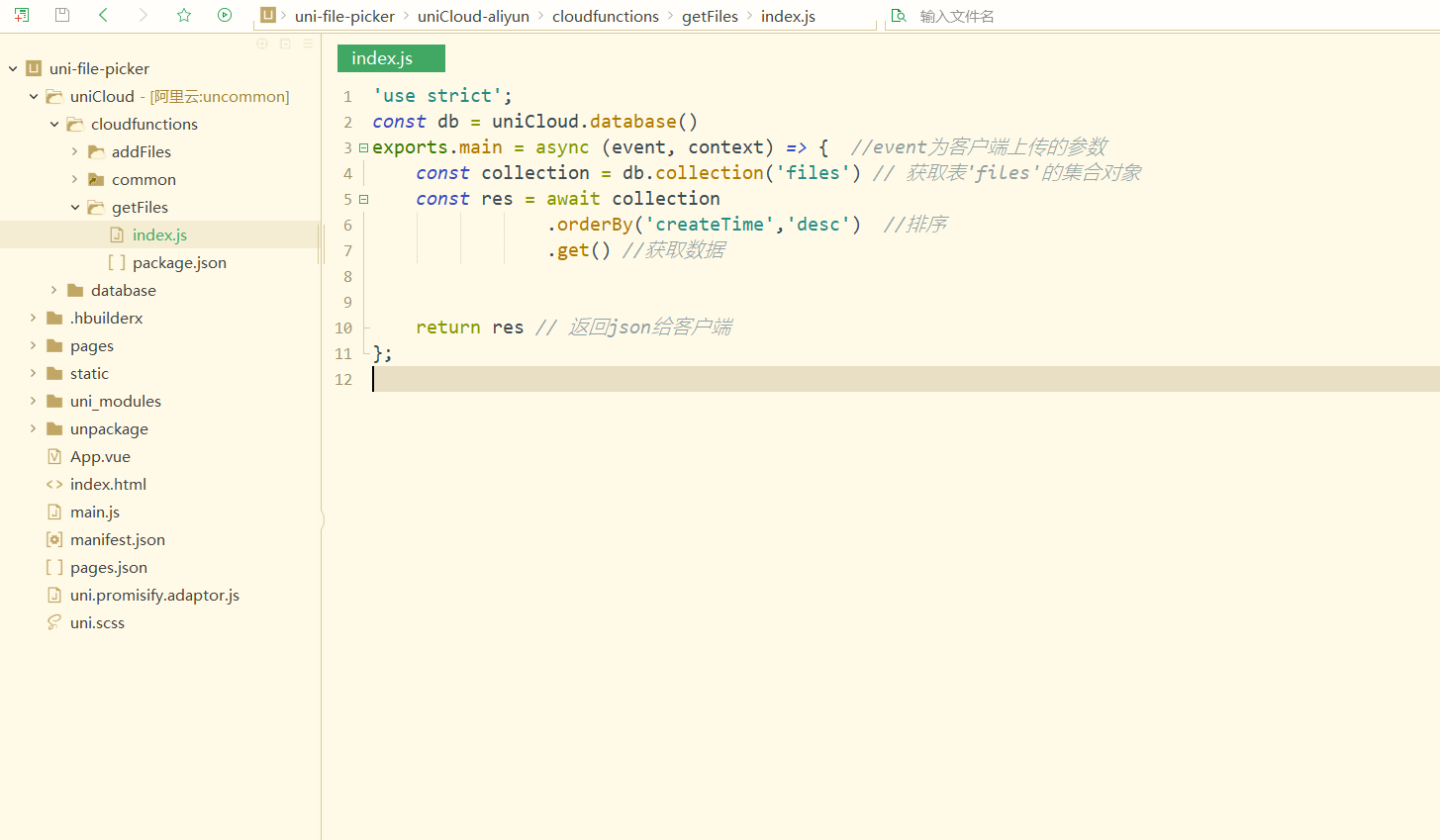
  7. getFiles.index.js里写函数:

    注意将 files 改为自己的云数据库里的表名

    1
    2
    3
    4
    5
    6
    7
    8
    9
    10
    11
    12
    'use strict';
    const db = uniCloud.database()
    exports.main = async (event, context) => { //event为客户端上传的参数
    const collection = db.collection('files') // 获取表'files'的集合对象
    const res = await collection
    .orderBy('createTime','desc') //排序
    .get() //获取数据


    return res // 返回json给客户端
    };
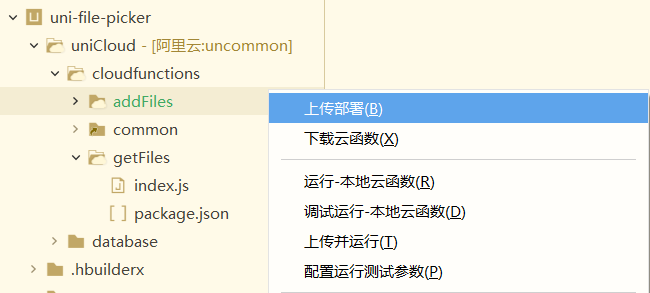
  8. 分别上传部署两个云函数

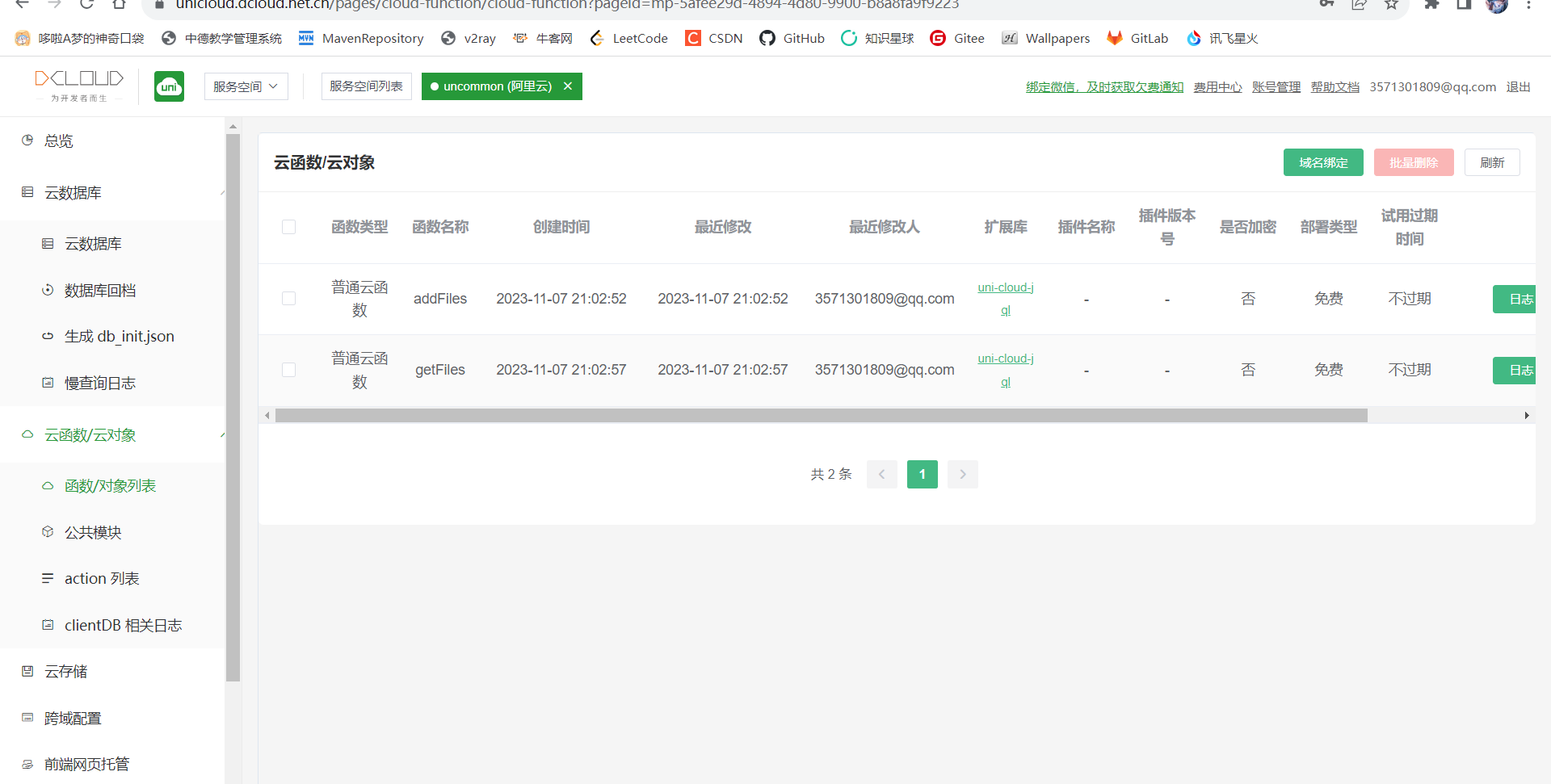
  9. 而后可以在web控制台内看到上传的云函数

代码实现

pages.index.inde.vue

可以根据具体需要选择何种上传方式,不需要的上传方式直接删除其整个部分即可

1
2
3
4
5
6
7
8
9
10
11
12
13
14
15
16
17
18
19
20
21
22
23
24
25
26
27
28
29
30
31
32
33
34
35
36
37
38
39
40
41
42
43
44
45
46
47
48
49
50
51
52
53
54
55
56
57
58
59
60
61
62
63
64
65
66
67
68
69
70
71
72
73
74
75
76
77
78
79
80
81
82
83
84
85
86
87
88
89
90
91
92
93
94
95
96
97
98
99
100
101
102
103
104
105
106
107
108
109
110
111
112
113
<template>
<view class="container">

<uni-section title="只选择图片" type="line"> <!-- 标题栏组件 type:装饰类型 -->
<view class="example-body">
<!-- 文件上传组件 ref:用来给元素或子组件注册引用信息 limit:最大选择个数
title:组件标题,右侧显示上传计数 source-type: album从相册选图,camera使用相机
auto-upload:是否自动上传 @success:上传成功事件 @fail:上传失败事件-->
<uni-file-picker ref="images" limit="9" title="选择图片" :source-type="['album', 'camera']"
:auto-upload="false" @success="success" @fail="fail">
</uni-file-picker>
</view>
</uni-section>

<uni-section title="只选择视频" type="line">
<view class="example-body">
<!-- file-mediatype:选择文件类型image/video/all 默认image-->
<uni-file-picker ref="videos" limit="9" file-mediatype="video" title="选择视频"
:source-type="['album', 'camera']" :auto-upload="false" @success="success" @fail="fail">
<button class="button">选择视频</button>
</uni-file-picker>
</view>
</uni-section>

<uni-section title="从聊天记录选文件" type="line">
<view class="example-body">
<uni-file-picker ref="files" limit="9" file-mediatype="all" title="选择文件" :auto-upload="false"
@success="success" @fail="fail">
<button class="button">选择文件</button>
</uni-file-picker>
</view>
</uni-section>

<view style="padding: 40px 10px;">
<!-- @click:点击事件 -->
<button class="button" @click="upload">确认上传</button>
</view>

<view style="padding: 40px 10px;">
<button class="button" @click="browse">浏览上传的文件</button>
</view>

</view>
</template>

<script>
export default {
data() {
return {}
},
methods: {
upload() { // 点击上传后调用的方法
console.log('开始上传')
this.$refs.files.upload() // 通过ref注册的引用信息来定位并上传
this.$refs.videos.upload()
this.$refs.images.upload()
},
success(res) { // 上传成功后调用的方法
console.log('上传成功啦!' + res.tempFilePaths) //res.tempFilePaths:上传的文件地址对象

//将当前日期格式化
var date = new Date()
var year = date.getFullYear()
var month = date.getMonth() + 1 < 10 ?
'0' + (date.getMonth() + 1) : date.getMonth() + 1
var day = date.getDate() < 10 ? '0' + date.getDate() : date.getDate()
var hours = date.getHours() < 10 ? '0' + date.getHours() : date.getHours()
var minutes = date.getMinutes() < 10 ? '0' + date.getMinutes() : date.getMinutes()

for (let i = 0; i < res.tempFilePaths.length; i++) { // 遍历文件列表以分别提交文件,以便每个文件都可以获取到唯一id
uniCloud.callFunction({ // 调用云端函数,把文件写入云数据表
name: 'addFiles', // 云函数名称
data: { // 提交给云端的数据
fileUrl: res.tempFilePaths[i], // 文件链接
createTime: year + '-' + month + '-' + day + ' ' + hours + ':' + minutes //文件的提交时间
},
success: (res) => {
console.log('数据插入成功' + res)
},
fail: (err) => {
console.log('数据插入失败' + err)
}
})
}
},
fail() { // 上传失败后调用的方法
console.log('文件上传失败了!')
},
browse() { // 预览云端文件
uni.navigateTo({ // 跳转到指定页面
url: "./view",
});
}
}
}
</script>

<style lang="scss">
.text {
font-size: 14px;
color: #333;
}

.example-body {
padding: 10px;
}

.button {
color: rgba(0, 0, 0, 0.6);
background-color: #179b16;
border-color: #000000;
}
</style>

pages.index.view.vue

1
2
3
4
5
6
7
8
9
10
11
12
13
14
15
16
17
18
19
20
21
22
23
24
25
26
27
28
29
30
31
32
33
34
35
36
37
38
39
40
41
42
43
44
45
46
47
48
49
50
51
52
53
54
55
56
57
58
59
60
61
62
63
64
65
66
67
68
69
70
71
72
73
74
75
76
77
78
79
80
81
82
83
84
85
86
87
88
89
90
91
92
93
94
95
96
97
98
99
100
101
102
103
104
105
106
107
108
109
110
111
112
113
114
<template>
<view>
<view class="free-WaterfallFlow">
<block>
<!-- 遍历文件列表以展示出来 -->
<view class="flex-wrap" v-for="(item,index) in imgList" :key="index">
<!-- mode=宽度不变,高度自动变化,保持原图宽高比不变 src=图片资源地址 -->
<image mode="widthFix" :src="item.fileUrl" :data-src="item.fileUrl" @click="clickimg" ></image>
<view> {{item.createTime}} </view>
</view>
</block>
</view>
<!--返回顶部-->
<view class="top" :style="{'display':(flag===true? 'block':'none')}">
<!-- src="../../static/top.png" 需要在该路径下放一张图片 用于表示‘回到顶部’ -->
<image class="topc" @click="top" src="../../static/top.png" ></image>
</view>
</view>
</template>

<script>

export default {
data() {
return {
imgList: [],
flag: false
}
},

onLoad() {
uni.showLoading({
title: '查询中...'
})
uniCloud.callFunction({ //调用云函数
name:'getFiles', //云函数名称
success: res => {
this.imgList = res.result.data //云端返回的数据
},
fail(e) {
console.log(e)
},
complete: () => {
uni.hideLoading()
}
})
},

methods: {
// 图片预览
clickimg(event) {
var imgurl = event.currentTarget.dataset.src
var currentUrl = event.currentTarget.dataset.src //获取点击图片的地址, **对应<template>里面的 :data-src="item.src"
uni.previewImage({
urls: [imgurl], //这里是单图 . 需要预览的全部图片地址,这个数组是必须的,要用[]
current: currentUrl, //当前显示图片的地址
})
},

//回到顶部
top() {
uni.pageScrollTo({
scrollTop: 0,
duration: 300
});
},
onPageScroll(e) { //根据距离顶部距离是否显示回到顶部按钮
if(e.scrollTop>600){ //当距离大于600时显示回到顶部按钮
this.flag=true
}else{ //当距离小于600时隐藏回到顶部按钮
this.flag=false
}
}

}
}
</script>

<style>
.free-WaterfallFlow{
width:96%;
column-count:2; /* 分隔的列数 */
}
.free-WaterfallFlow .flex-wrap{
display: inline-block;
width:98%;
margin-left:3%;
margin-bottom:3%;
padding:2%;
padding-top:5%;
border:0px solid #cc22b0; /* 边框 */
box-shadow: 0 2px 2px rgba(34, 25, 25, 0.4); /* 框阴影 */
text-align: center; /* 框内元素居中对齐 */
}
.flex-wrap image{
width:95%;
margin:0 auto;
}

/* 回到顶部 */
.top {
position: relative;
display: none; /* 先将元素隐藏 */
}
.topc {
height: 30px;
width: 30px;
position: fixed;
right: 5px;
top: 80%;
}
</style>


新页面需要添加在pages.json里:

1
2
3
4
5
6
7
8
9
10
11
12
13
14
15
16
17
18
19
20
21
22
23
24
{
"pages": [ //pages数组中第一项表示应用启动页
{
"path": "pages/index/index",
"style": {
"navigationBarTitleText": "上传文件"
}
},
{
"path": "pages/index/view",
"style": {
"navigationBarTitleText": "预览文件"
}
}
],
"globalStyle": {
"navigationBarTextStyle": "black",
"navigationBarTitleText": "uni-app",
"navigationBarBackgroundColor": "#F8F8F8",
"backgroundColor": "#F8F8F8"
},
"uniIdRouter": {}
}

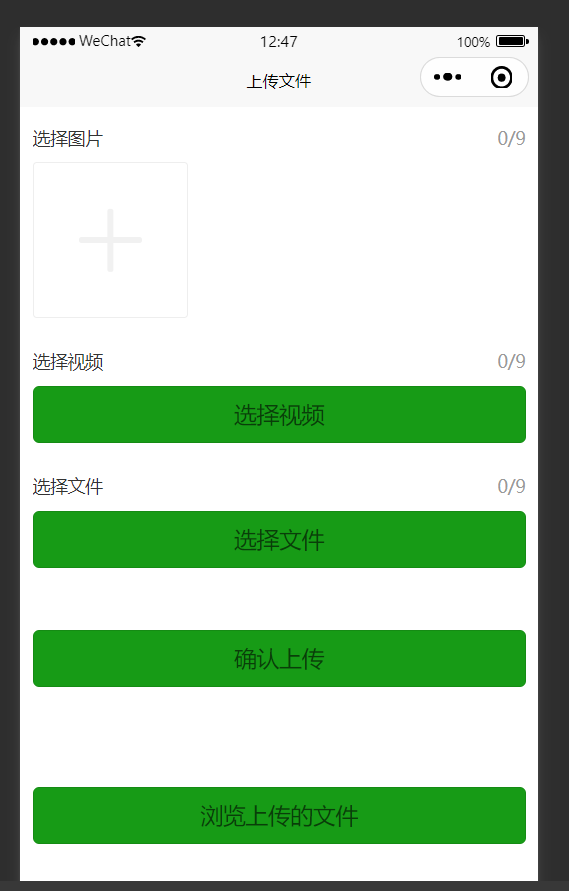
启动!

注意右上方的选择连接本地云函数还是云端云函数

本地云函数一般是云函数的开发版

云端云函数一般是云函数的发行版

在我们这里当然都一样啦,选哪个都行

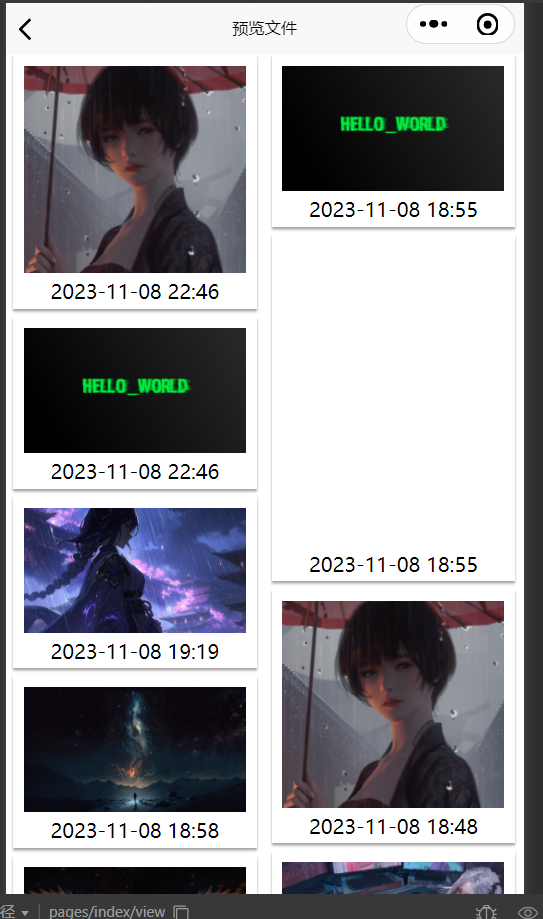
只有图片可以预览,其它文件都显示空白

仅用于说明可以从云端拿回上传的文件

微信小程序文件上传
https://www.wananhome.site/2023/10/27/微信小程序文件上传/
作者
WanAn
发布于
2023年10月27日
许可协议